
Manage Scheduling Stage
Once the Pre-Production step has been completed, you will be able to move on to the next step which is to Schedule. The schedule portion will now be available to manage and edit.
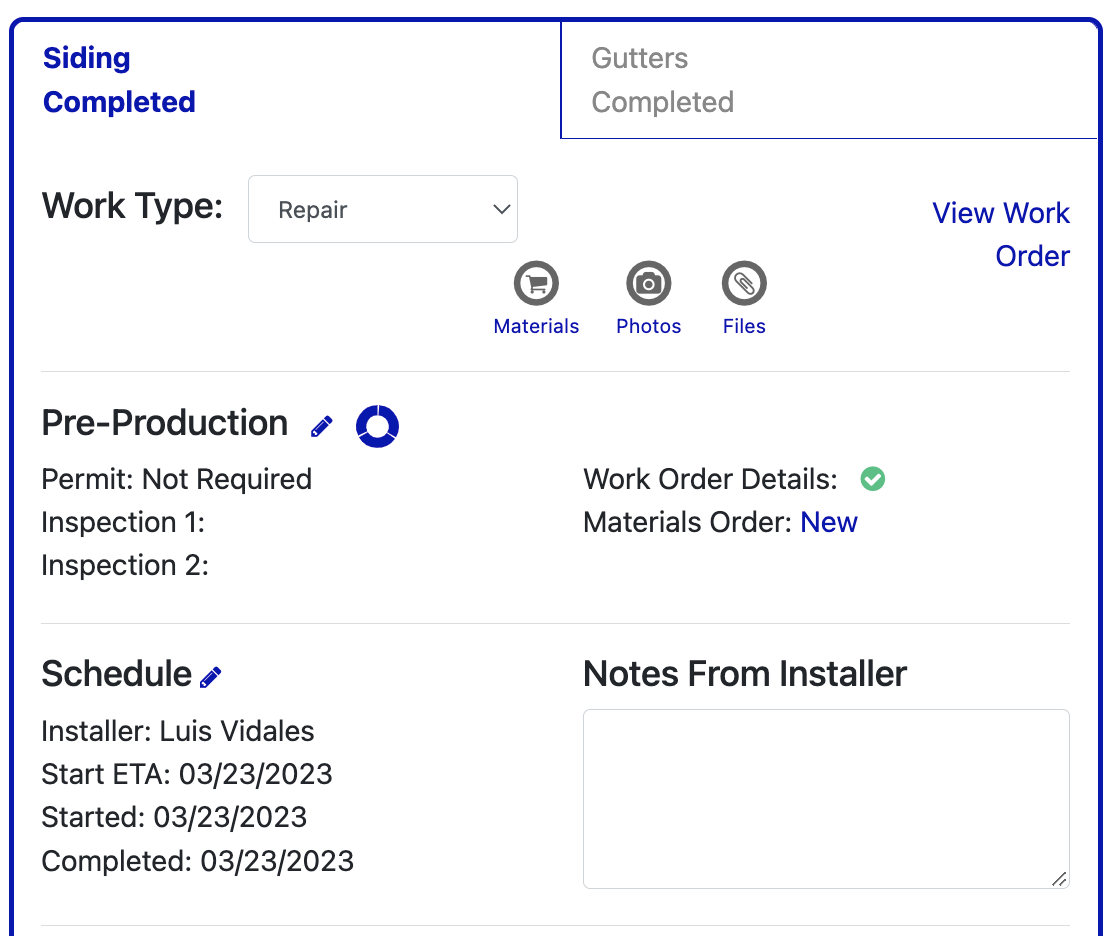

To schedule the work order, you can click on the Pencil icon which opens the Schedule window. The fields in this window will allow you to move the Work Order through its various stages.
Select Installer: The dropdown menu will display all of the crews (in-house or subcontractors) that you have set up in your system. Selecting an installer will move the Work Order to status Assigned. Upon saving your selection, the work order will be delivered to the selected Installer.
Start ETA: Input the date that you expect the crew to begin work. Inputting a Start ETA will move the work order status to Scheduled.
Started: There are two ways for a started date to be entered in this field. The user can enter a date, or one will be entered automatically when the crew checks in to the job site. Entering a Started date will move the work order to status In-Progress.
- Completed: There are also two ways for a completed date to be entered. The production user can manually enter a date, or one will be automatically when the crew closes their work order. Entering a Completed date will move the work order status to Pending Review.
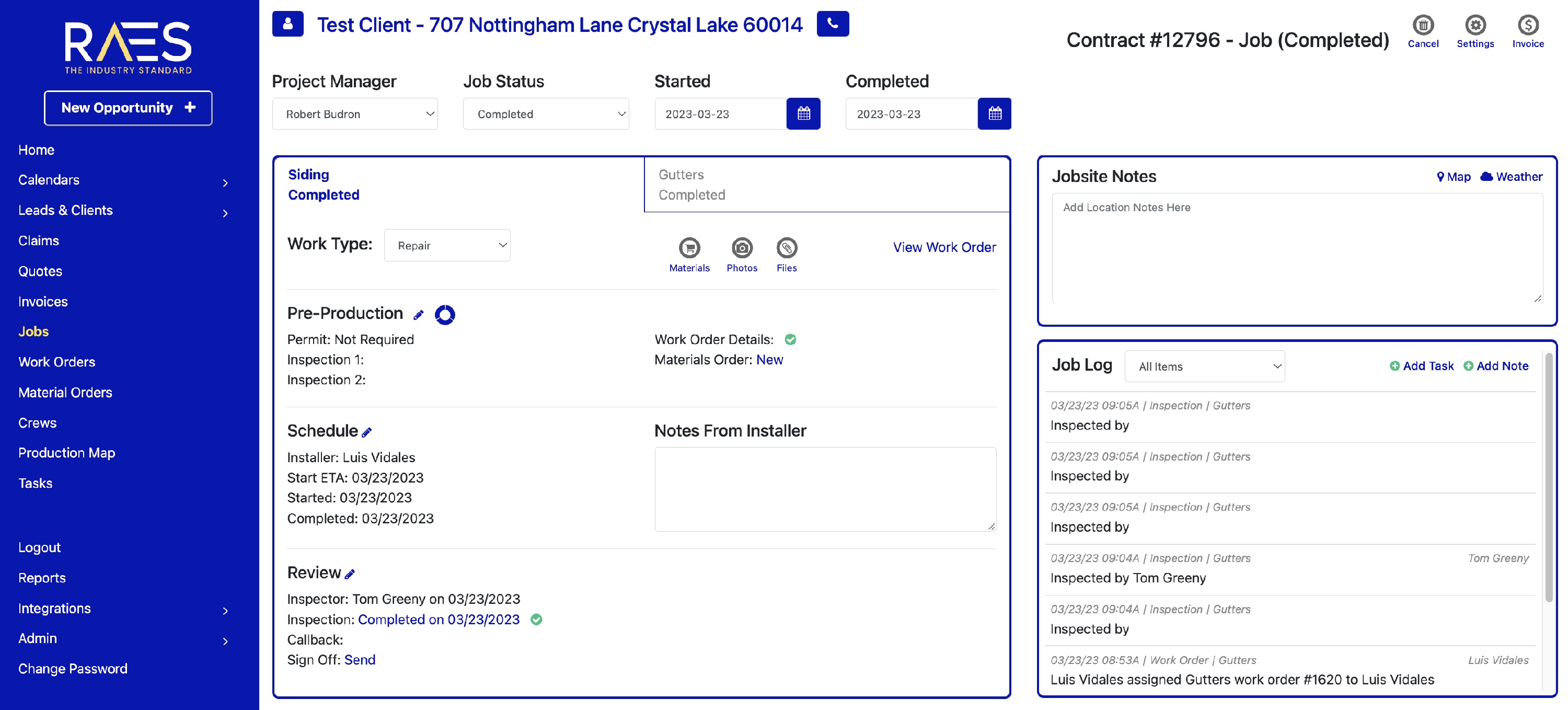
Note: Any notes entered by the installer on their mobile portal will also appear in the Schedule portion of the work order in the Notes From Installer box.
Once the work order has been completed, the Review portion of the work order will become available