
How to Adjust Window Width for Optimal Page Viewing
In this article, we will guide you through simple steps to ensure an optimal viewing experience on a webpage.
Initially, when you use your phone or tablet you might notice that not all the content is visible on the screen, and there is content extending beyond the right edge. What happens is that the modal window automatically adjusts its width to match the width of the page. However, if the page extends beyond the right side of the screen, the modal window may not fit entirely on the screen. This is similar to other screens in the system that are too wide to fit entirely on the screen.
To resolve this issue, you can try two simple guides. First, is to adjust the modal window width to match the page width automatically. Secondly, is to enable the desktop site option if zooming in or out does not display all the page contents.
1.Adjusting Modal Window Width (Pinch and Zoom Out)
- Place your two fingers on the screen then gently pinch them together. The content on the screen will start to zoom out.
- Keep pinching your fingers until the content fits within the screen comfortably.
- Once you have zoomed out sufficiently, you should be able to navigate and explore the entire page without missing any content and be able to scroll left/right.
If you need to zoom in again, simply reverse the pinch gesture by extending your fingers apart.
If option 1 flops, smoothly switch to option 2.
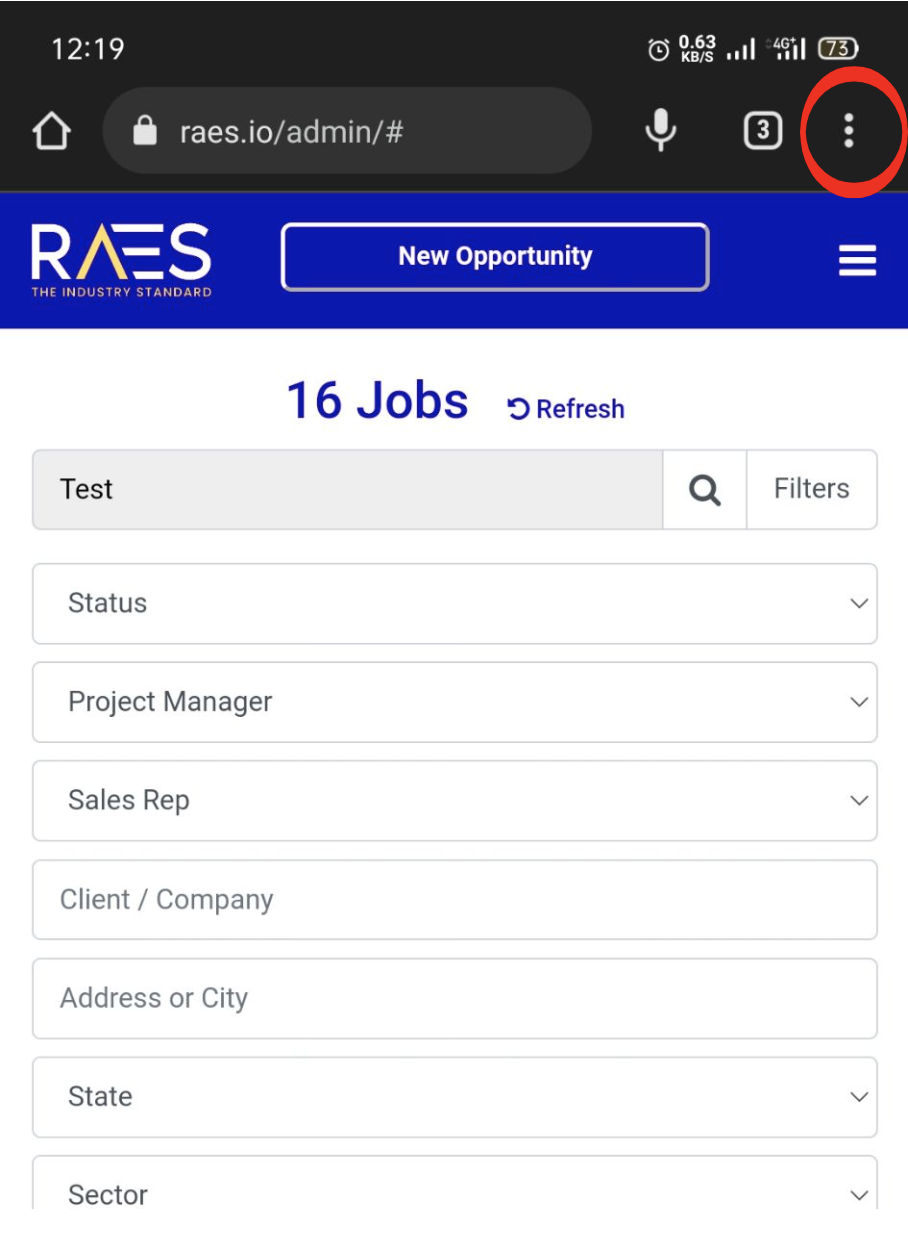
2.Enabling the Desktop Site Option
- Look for the three dots icon located at the top right corner of the page. This icon represents additional options or settings.
- Click on the three dots icon to open the menu.
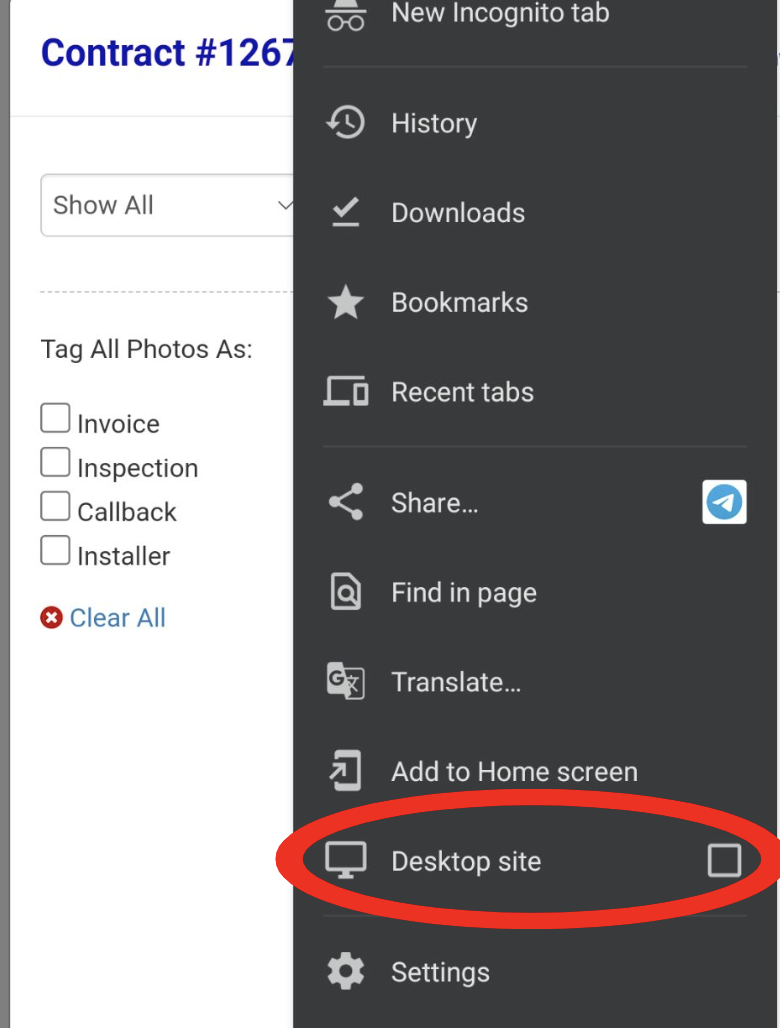
- Within the menu, search for an option named "Desktop site." This option allows you to view the webpage on your (phone/tablet) device as it would appear on a desktop computer.
- Once you find the "Desktop site" option, check the box beside it to enable it.
- After checking the box, click on the "Continue" button to apply the changes.
- The page will now reload, and you should see the desktop version of the site.
- Zoom in or out as necessary to view all the contents of the page comfortably.
This will help ensure that you can view all the contents of the page, even if it extends beyond the screen. Enjoy an optimized viewing experience and explore the webpage hassle-free.